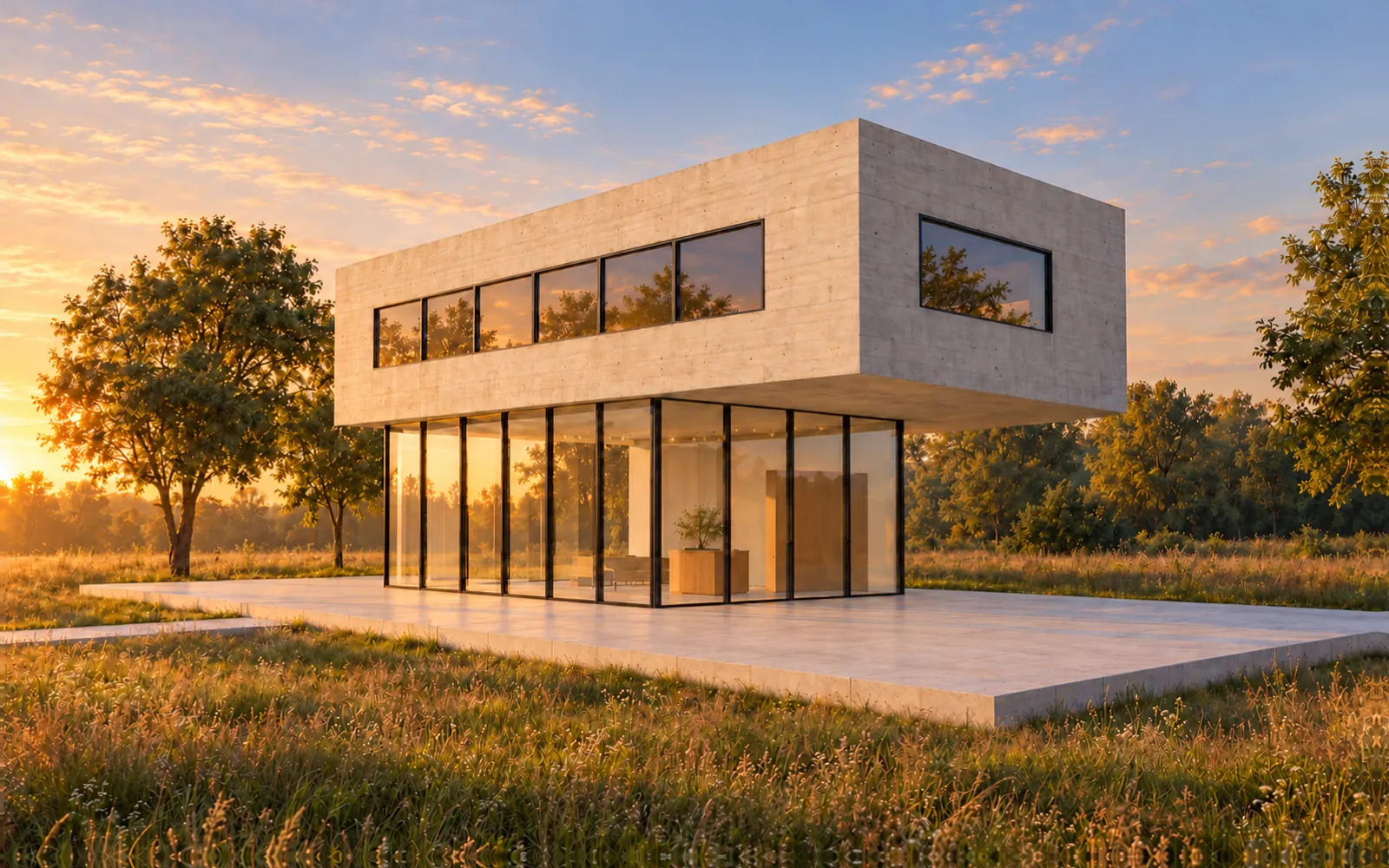
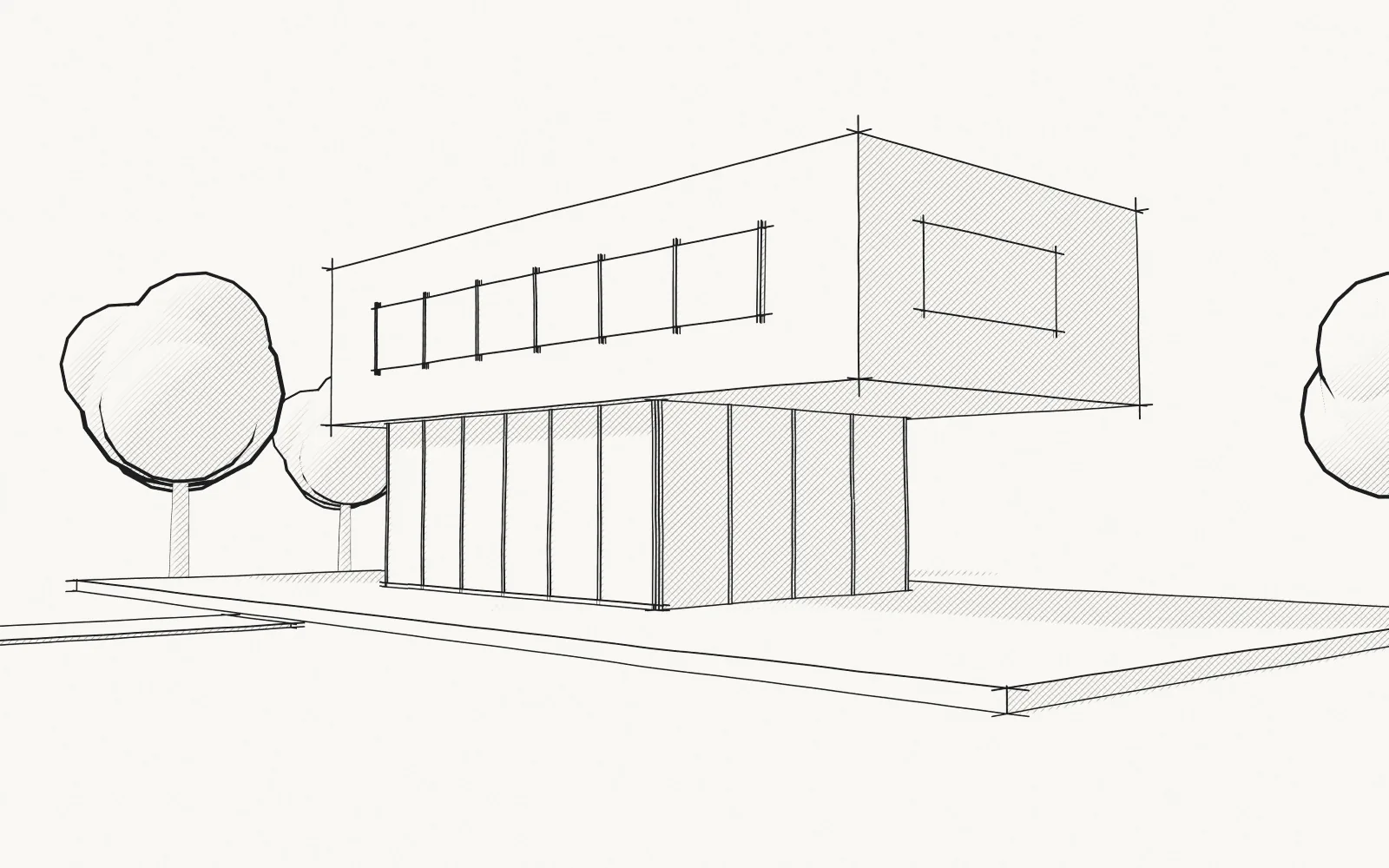
4K for print3840 × 2160 px
Sharp enough for an A1 board.
Final images in 2K for screens, or 4K for competition panels and print.
AI renders for architects
Photoreal renders from a hand sketch, or a CAD or 3D screenshot, in about 20 seconds. No prompts. The first one is free.
Why Sketchfest
Here it takes seconds. A classic render means modelling, materials, lights, render time and retouching: hours for every image.
Time per image
The usual wayhours for every image
Model, materials, lights, render, retouch
Sketchfestabout 20 seconds
What you can drop in
A sketch on paper, or a screenshot of your CAD drawing or 3D model. No DWG or model files: a screenshot is all it needs.
Sketchfest reads images. Frame the view in your CAD or 3D program, take a screenshot, then drop or paste it here.
Mac ⇧⌘4Windows WinShiftS
Drop theseJPGPNGWEBP
Screenshot these firstDWGDXFSKPRVT3DM
How it works
It keeps the geometry you drew, works out depth from your perspective, then adds light, materials and context.
Layers4
Looks
Pick the light and the mood with one click. Drag the line to compare the render with the sketch.
Looks6
Features
Quick studies for 1 credit, then final images in 2K or 4K for boards and print.
4K for print3840 × 2160 px
Final images in 2K for screens, or 4K for competition panels and print.
Follows your lines
Exactly keeps every line. Loosely lets the AI add ideas of its own.
Any format
Keep your drawing's shape, or pick 16:9, 3:2, 4:3, 1:1, 4:5 or 9:16.
Fast
Try all six looks in about two minutes, then make the best one 2K or 4K.
Phone first
Take a photo with your phone, pick a look and render. No scanner, no laptop.
Private by default
Projects are visible only to you, and you can delete anything at any time.
Questions
Still unsure? Write to [email protected] and a real person will reply.
Drag and drop your drawing
A sketch, or a CAD or 3D screenshot.
Or choose a file, or paste one.
One project per drawing, with every render you made from it. Only you can see them.
Your first test render is free. Then pick a plan for fresh credits every month.
Tell us roughly what you make in a month.
Anything else? Write to [email protected] and a real person will reply.
Draw a clear perspective in dark, closed lines, capture it flat and evenly lit, upload it to a tool that follows your drawing, then check the render against your sketch before anyone sees it.
By the Sketchfest team9 min read
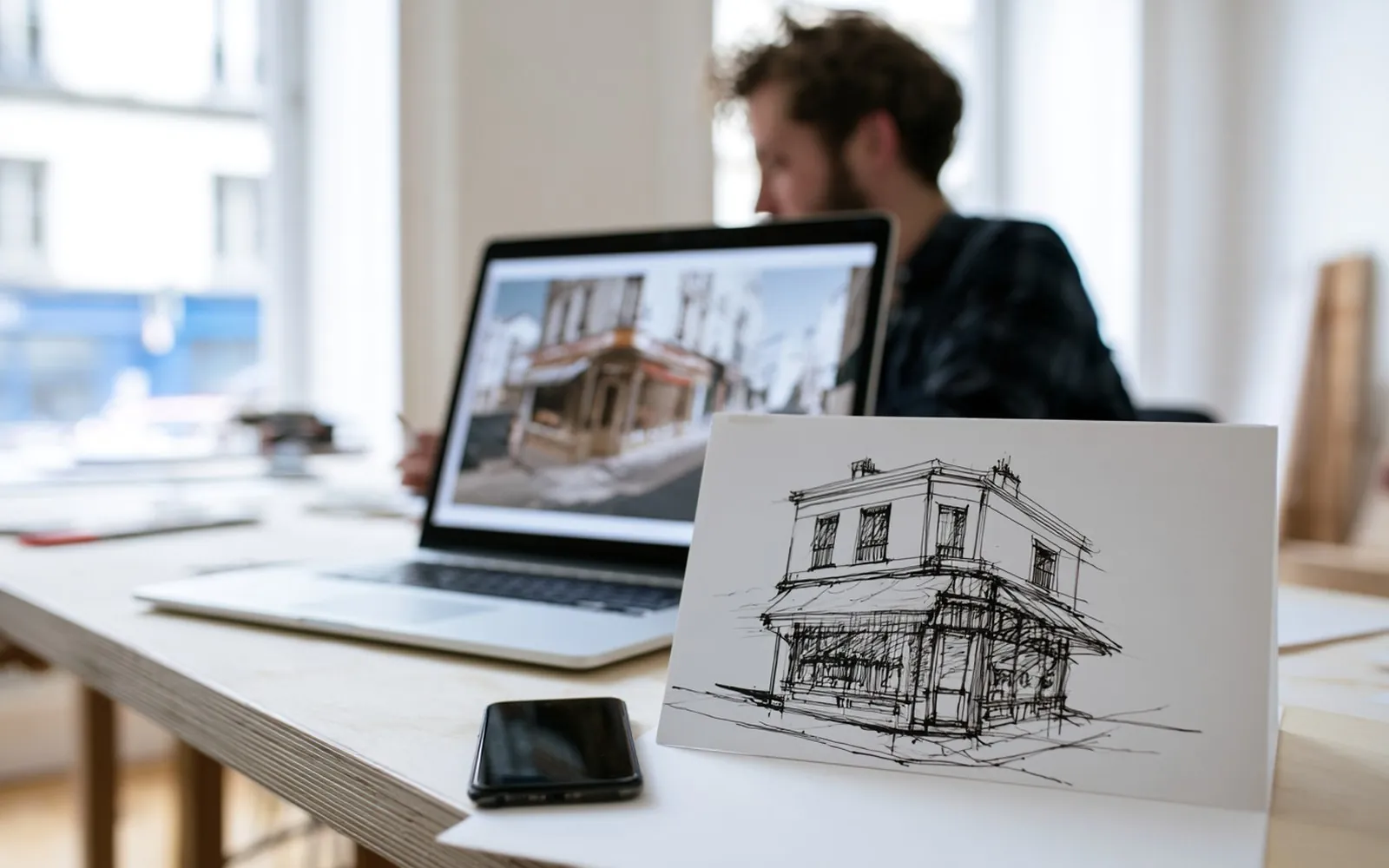
A sketch is still the quickest way to test an idea, and AI can now turn one into a photoreal image in seconds. Close is common: in the 2026 Chaos and Architizer survey, around 70% of respondents said AI visuals reflect their intent "to a reasonable degree, even if not perfectly". Part of the gap between close and right opens before the AI sees anything, in what you draw and how you get it off the paper.
This guide follows one sketch from the desk to a finished image. For written prompts and the wider choice of tools, read how to render architecture with AI.
A sketch-to-render tool reads your drawing, then fills in what lines can't say: materials, light, sky and the street.
Reading works on contrast. ControlNet, a 2023 research method for guiding an image model with a drawing, uses inputs like "Canny edges, Hough lines, user scribbles". Canny edge detection keeps strong changes in brightness and drops weak ones: in OpenCV's guide, edges below the lower threshold "are sure to be non-edges, so discarded". Black ink on white paper is a strong change. Light pencil on paper turned grey by a lamp is a weak one, and parts of it can vanish.
Filling in works on recognition. When a mark is unclear, the ControlNet authors write, "the results look like the model tries to interpret input shapes". That is how a smudge can become a bush, and a dimension line a railing. Three rules follow:
A plan or a section isn't a view of the building, so it makes a poor start. Keep vanishing points well apart, or the render keeps the distortion. Leave some ground in front and some sky above, so the AI knows where the building stands.
A sketch for rendering is an instruction: it should hold the design and nothing else. Give the heaviest line to the edges against sky and ground, a medium line to corners and openings, and a light line to detail. Then close every outline. If a corner line stops short, the AI decides where the wall ends.
| Part of the drawing | Draw it? | Why |
|---|---|---|
| Outline and roof edge | Yes, closed, in the heaviest line | Tells the AI where the building stops |
| Doors and windows | Yes, each one | The number and size of openings are the design |
| Ground line | Yes | Puts the building on the ground |
| Canopies and balconies | Yes, with their thickness | A single line can read as a crack |
| Material hatching | A few even strokes | Dense hatching can turn into a pattern |
| Shading | Light, or not at all | Scribbled shade can read as dark openings |
| Lettering on signs | Leave the sign band blank | Hand lettering can come back misspelt |
| Notes, dimensions, construction lines | Leave out or rub out | They are lines too, and can turn into objects |
What matters is a dark, even, unbroken line. A black fineliner gives the most even one. With pencil, use 2B or softer and press firmly, but graphite shines under a lamp and can photograph pale.
Use plain, smooth white paper. Squared or lined paper adds a grid the AI can read as part of the building. In a sketchbook, press the page flat, because the curve near the spine bends lines and throws a shadow.
What each way of capturing a sketch needs, fixes and can break:
| Method | What you need | Time, roughly | What it fixes | What it can break |
|---|---|---|---|---|
| Quick photo, as it lies | A phone | Seconds | Nothing | Leaning lines, shadows, a colour cast |
| Flat photo in daylight | A phone and a window | About a minute | Leaning lines, shadows, colour cast | Faint pencil stays faint |
| Phone document scanner | Apple Notes, Google Drive or Adobe Scan | About a minute | Straightens the page, whitens the paper | Can crop into the drawing or wipe out light pencil |
| Flatbed scanner | A scanner | A few minutes | Flat page, even light | Large sheets; light pencil can come out pale |
| Photo plus a quick edit | A phone photo editor | About five minutes | Crop, tilt, grey paper | Too much contrast breaks thin lines |
| Ink over the pencil first | A black fineliner | 10 to 30 minutes | Faint and construction lines | Some of the pencil's looseness |
Black and white filters in scanner apps are made for text. They suit ink but can wipe out light pencil, so ink first or pick the greyscale filter.
Edit a copy in your phone's photo editor and keep the original.
General image tools can start from a sketch too. ChatGPT lets you upload a drawing and describe the image you want. Midjourney takes a sketch as an image prompt, with a weight for how much it counts, and Adobe Firefly can match a reference image's "outline and depth" with a Strength slider. All three are led by your words. For a comparison, read which AI is best for architectural renders.
Sketchfest is built for architects, and for this job. You upload the photo or scan of your sketch and get a photoreal render of your design in seconds. It follows your drawing, so the design stays yours, and there is no prompt to write. The same works for a CAD screenshot or a 3D view. There is nothing to install: it works in your browser. Your projects stay private, and your drawings are not used to train AI.
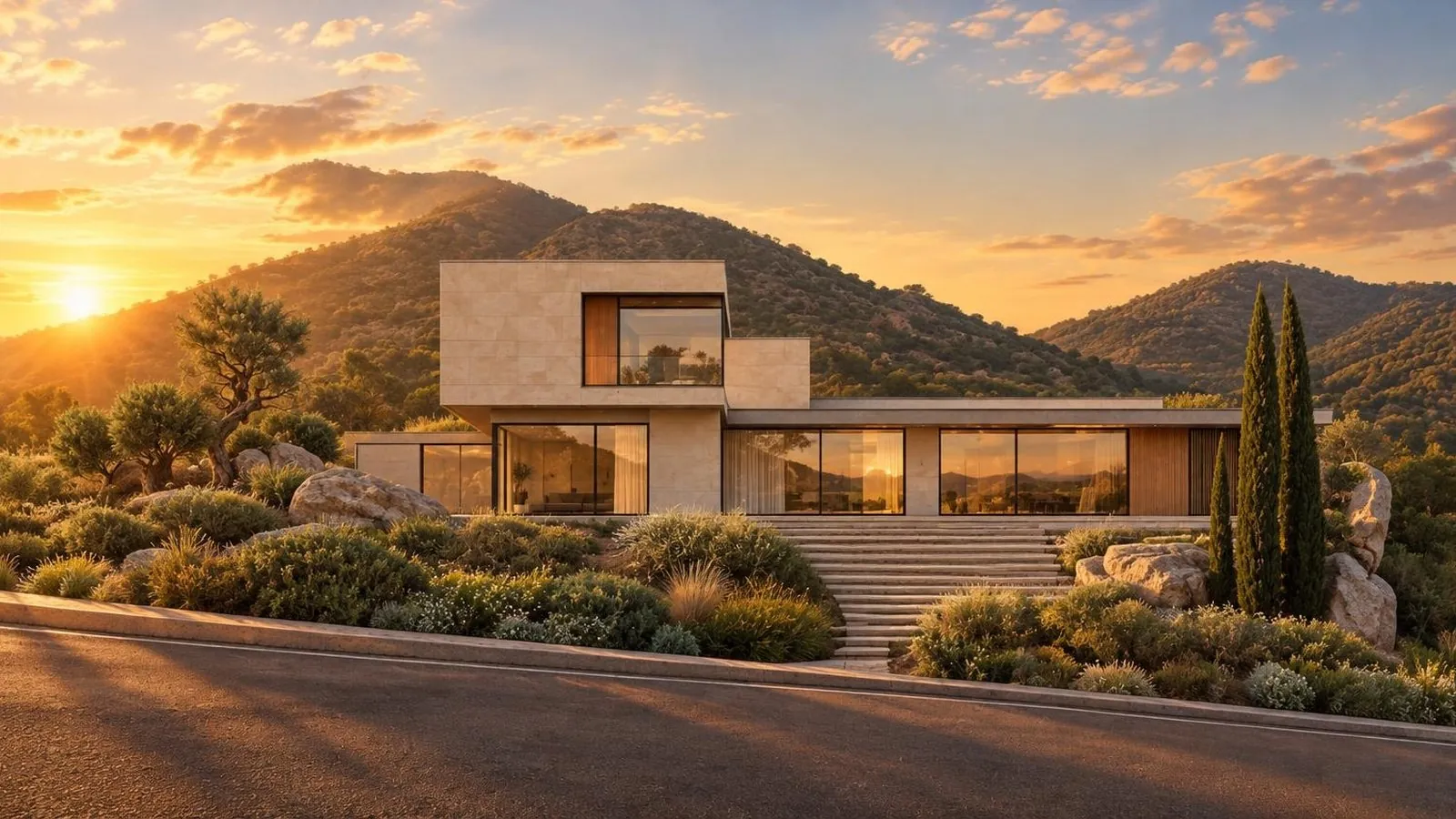
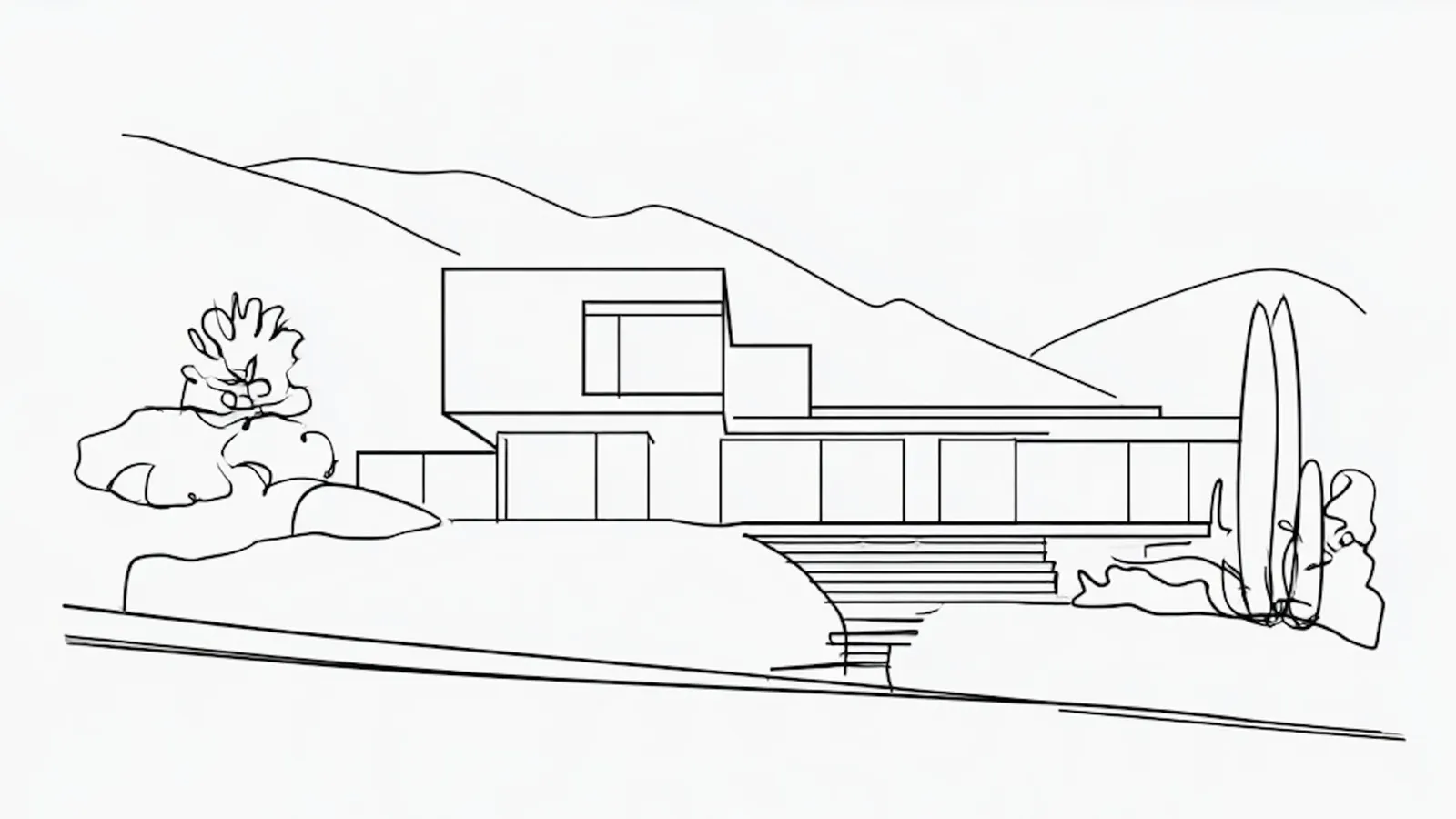 RenderHand sketch
Render a few versions before you choose. The parts that stay the same in every version are the parts your drawing pins down. The parts that change are where the AI is still guessing.
Choose for the design first and the mood second. A beautiful render that moved the entrance is wrong. Check:
Most mismatches start on the paper or in the photo, so the quickest fix is usually there, not in more tries.
| What you see | Likely cause | Fix |
|---|---|---|
| The building leans | The photo was taken at an angle | Shoot flat, or correct the tilt |
| A window is missing | Its lines were faint or broken | Ink it and close its outline |
| An extra window or edge | A construction line | Rub out construction lines |
| A bush or a stain you never drew | A smudge or your shadow | Retouch it out, then render again |
More causes and fixes are in why AI doesn't follow a sketch.
For a client. Put the sketch beside the render. The pair shows where the idea came from, and that the render is a study, not a photo of a finished building.
For a board. Print needs far more pixels than a screen: see what resolution an A1 architecture board should be. For a competition, read its rules on AI images first.
Label it. A mark stored in a file can be lost on the way: the Content Authenticity Initiative notes that "metadata of any kind can be removed deliberately or accidentally". So add a visible caption, for example "AI visualisation made from the architect's sketch, October 2026".
Keep versions. Never overwrite. Keep the original sketch, the cleaned upload, every render with its date, and the final image. Then you can render again when the design moves on. It is also a first step towards a written AI policy, which only around 19% of practices in RIBA's 2026 survey have.
Yes. Photograph or scan it, crop it in the photo app and upload it in your browser.
Your sketch stays yours, and in the US the part of the render that shows it can be yours too. The Copyright Office registered "Rose Enigma", an image made by putting a hand drawing into an AI system, with the note "Registration limited to unaltered human pictorial authorship". Rules differ by country and this isn't legal advice. For the wider risks, read Is AI a threat to architecture?
Try it on your drawing. Your first test render is free.
Drop a hand sketch, or a CAD or 3D screenshot. Your first test render is free.
 AI in practice
There are two ways: describe a building in words and let the AI imagine it, or start from your own drawing and let the AI turn it into a photoreal image.
9 min read AI in practice
It depends on the job: a general image AI for ideas and mood, a render engine with AI for final images from a full model, and a tool that starts from your drawing for showing your own design.
9 min read Using Sketchfest
Three ways: SketchUp's own AI Render, a render engine such as V-Ray, Enscape or Twinmotion, or a clean exported view uploaded to Sketchfest. Start from one saved Scene, then pick the route that suits you.
8 min readLast updated 3 November 2026
The short version
Sketchfest (sketchfest.ai) is run by BNER Limited, a private company limited by shares incorporated in Hong Kong (company number 80898063), with its registered office at Unit 1603, 16/F, The L. Plaza, 367-375 Queen's Road Central, Sheung Wan, Hong Kong. You can reach us at [email protected]. In these terms, "we" means BNER Limited and "you" means the person or business using Sketchfest. These terms are the agreement between you and us for using Sketchfest. You buy paid plans from us, and Stripe takes the payment (section 7). All our details are on the company details page.
Sketchfest turns hand sketches, and screenshots of CAD drawings and 3D models, into images using artificial intelligence (AI). The images are made by AI models from other companies, at present OpenAI, with Microsoft as a backup (see the privacy policy). AI results vary: the same drawing can give different images, and an image may not follow your drawing exactly or may show things that are not in it. The images are visual studies, not technical or construction drawings. Render times we show are typical, not promised.
You sign in with a code or a link we email you, or with Google where we offer it. There are no passwords, so keep access to your email account safe: anyone who can read it can sign in. An account is for one person; please do not share it. You must be at least 16 to use Sketchfest, and if you are under 18 you need the permission of a parent or guardian. To buy a plan you must be an adult where you live. Please use an email address you read, because we send sign-in codes and links, downloads and notices about your plan there, and keep your details up to date.
Everyone can make one free test render. You give us your email address and we send you a 6-digit code and a link: typing the code, or opening the link, confirms the address, opens your free account and starts the render. Both work for 24 hours. There is one free render per person, per email address (an address with a +tag, or a Gmail address with dots, counts as the same address), per account and per device, with a daily limit for each network, and a quick check by Cloudflare Turnstile tells people from bots. If you never use the code or the link, your drawing is removed after 2 days, and its locked safety copy 90 days after that (privacy policy, section 8). We may refuse free renders obtained through several accounts, throwaway email addresses or automated tools.
Sketchfest works with credits. Every action shows how many credits it uses before you start: a test render uses 1 credit, a final image in 2K 5 credits, and a 4K print image 10 credits. Final images in 2K and 4K come with a plan. Costs can change over time, but the cost shown when you start is the one that applies.
Credits are not money. They have no cash value, cannot be transferred or sold, and can only be used on Sketchfest. Credits come with your plan every month and are for that month only: unused credits do not roll over and expire when the next month's credits are due. If a renewal payment is late, your leftover credits stay usable for up to a day while it goes through. Yearly plans get their credits month by month, on the same rule. Extra credits from an upgrade expire with the month they were added to. When your plan ends, its unused credits expire with it.
If a render fails, its credits go back to your account automatically. Every drawing, the words you add and every render go through an automatic safety check, and our AI providers have their own filters too (section 10). If one of them stops a render, it does not run or is not delivered, and its credits come back too.
Sketchfest works by subscription. There are three plans, Basic, Plus and Pro, each with a set number of credits every month, billed monthly or yearly. A plan renews automatically at the end of each period until you cancel. You can cancel at any time on the Billing page. The plan then runs to the end of the period you paid for, you keep its credits until then, and it does not renew. Before a yearly plan renews, you get a reminder by email.
You can move to a bigger plan at any time: you pay the difference for the rest of the current period, at the price shown before you confirm, and get the extra credits straight away. A move to a smaller plan, or between monthly and yearly billing, starts at your next renewal. If we change the price of your plan, we tell you at least 30 days before it applies to you, and you can cancel before then.
Who sells your plan: BNER Limited sells the plans and provides the Sketchfest service. Stripe, our payment provider, takes the payment on its secure checkout page and emails you the receipt.
Prices: in euros. The price shown is the full price you pay. If you buy for a business, tick that you are purchasing as a business at checkout and add your company name and VAT number; you can also add them, with your address, on the Billing page. They appear on your invoices from then on.
Payment: by card, Apple Pay, Google Pay or Link, on Stripe's checkout page. We never see or store your full card details. Your receipts and invoices also appear on the Billing page. If a plan payment fails, it is tried again and we let you know by email; that month's credits arrive once the payment goes through. If it keeps failing, the plan ends.
Help with a payment: write to us at [email protected]. If a payment was taken by mistake or without your permission, tell us and we put it right.
If you are a consumer in the European Union or the United Kingdom, you can withdraw from a purchase within 14 days of buying it, without giving a reason: use Withdraw from contract on the Billing page, or write to us at [email protected], and we confirm by email. Before you pay, you tick a box to ask for your plan to start straight away and to accept these terms and the privacy policy, and your credits are ready as soon as you pay. So if you cancel within the 14 days, you pay for what you have already used, as consumer law allows. What you used is counted in credits, at your plan's price per credit: the price you paid divided by the credits your plan gives for that period. For example, Basic monthly is €9 for 60 credits, so €0.15 a credit; Basic yearly is €90 for 720 credits, so €0.125 a credit. We refund the rest to the payment method you used within 14 days, and your plan and its credits end when you withdraw. We keep a record of your tick (the time, your network address and your email address) to show that you asked. Consumers elsewhere may have a similar right under their local law.
Otherwise, payments are not refundable, including for unused credits or the unused part of a period, except where the law requires it or section 12 applies. We look at other refund requests case by case. If a payment is refunded, the unused credits it bought are removed from your account in proportion. If a render fails, its credits come back to your account by themselves. Your legal rights if Sketchfest does not work as described are not affected (section 13).
Your drawings stay yours. You allow us to store your drawings, your words and the images you make, and to process them, including sending them to our AI providers, only to run Sketchfest for you and keep it safe. This ends when you delete them, except for a locked safety copy that we keep for 90 days, and longer only while a report or safety flag about it is open or the law requires it (privacy policy, section 8). We look at them only as the privacy policy describes, and neither we nor our AI providers use them to train AI models.
We claim no rights in the images you make: as far as there are rights in them, they are yours. You can use them for any lawful purpose, including client work, portfolios, competitions and commercial work. AI can make similar images for other people, so we cannot promise that an image is unique or that it can be protected by copyright. Some competitions and clients have rules about AI images, so check them before you submit.
Images made with Sketchfest carry metadata that marks them as made with AI, as the EU AI Act requires. Please keep it. If you publish an image that people could mistake for a real photograph of a real place or event, say that it was made with AI where the law requires it.
You confirm that you have the right to upload what you upload, and that it does not break the law or anyone else's rights.
Sketchfest is for visuals of architecture, interiors and landscape. Do not upload, write or make any of the following, in a drawing, in your words or in a render:
Do not try to get around the safety checks, credit limits, free-render limits or payments; share your account; or scrape, copy, resell, reverse engineer, overload or probe the service, or use bots or scripts on it without our permission.
How we keep to these rules: every drawing, the words you add and every render go through an automatic safety check before anyone sees the result, and our AI providers have their own filters. What they stop is not rendered or not delivered, and its credits come back. A person on our team then reviews what was stopped, as the privacy policy describes. We may remove content that breaks these rules and suspend or close accounts. For a serious or repeated breach we may close the account at once, without a refund for the current period, except where the law requires one. We report illegal content, above all child sexual abuse material and credible threats, to the police or the responsible authority, and keep it as long as they or the law require. Where we can, we tell you first, give our reasons and let you respond.
If you think content on Sketchfest is illegal or breaks these terms, email [email protected] with where it is, why you think so, and your name and email address. We look at every report promptly and tell you what we decided. If we remove your content or limit your account, we tell you why, unless section 14 allows us not to, and how to challenge the decision; a person reviews every challenge.
We work to keep Sketchfest running, but we cannot promise it will always be available or free of errors. We may change, add or remove features, and change the AI models we use. If we stop a feature you pay for, or close Sketchfest, we tell you at least 30 days in advance and refund the part of your plan you have not used.
Nothing in these terms limits the rights you have as a consumer by law, including your rights if Sketchfest does not work as described (in the EU, the rights for digital services under Directive (EU) 2019/770; in the UK, the Consumer Rights Act 2015), or liability that cannot be limited by law, such as for death, personal injury, fraud or gross negligence. If you are a consumer, we are responsible for loss you suffer that was foreseeable and caused by our breach of these terms.
If you use Sketchfest for a business, our total liability to you in any 12 months is limited to what you paid in those 12 months, and we are not liable for indirect losses such as lost profit, lost business or lost data.
Sketchfest images are visual studies. Check them before you rely on them for design, planning, construction or legal purposes.
You can delete your account at any time on the Account page. This deletes your projects and images and ends your plan at once. Credits you have left are lost, and the rest of the current period is not refunded, without affecting your rights under consumer law. We keep our payment records for as long as accounting and tax law require.
Suspending an account: we may suspend your account at once, without notice, while we look into a suspected breach of these terms, fraud, a payment dispute or chargeback, a security risk, or a request from an authority. A suspended account cannot sign in or render, and its plan stops renewing.
Closing an account for a reason: we may close your account at once, without notice, if you break these terms seriously or repeatedly (section 10), act fraudulently or abusively, try to harm Sketchfest or other people, or if the law or an authority requires it. You then get no refund for the current period, except where the law requires one.
Closing an account for any other reason: we may also close your account, or stop offering Sketchfest to you, for any other reason. We then tell you by email at least 30 days before, and refund the part of your plan you have not used.
Reasons: we usually tell you why. We may give no reason, or a short one, where the law does not allow more, where it would harm an investigation or someone's safety, where it would help someone get around our safety systems, or when we close an account with notice (above). If you think we made a mistake, reply to our email and a person will look at it again.
New accounts: we may refuse to open an account or sell a plan to anyone, and if we closed your account for a reason, you may not open a new one without our permission.
If we change these terms in a way that matters, we email you at least 30 days before the change applies. If you do not agree, you can cancel your plan and delete your account before then.
These terms are governed by the law of the Hong Kong Special Administrative Region. If you are a consumer, you also keep the protection of the mandatory laws of the country where you live, and you can bring a claim in the courts there. If you use Sketchfest for a business, the courts of Hong Kong decide any dispute. If something goes wrong, please write to [email protected] first: we reply within 5 working days.
We do not offer or sell Sketchfest to, from or within Cuba, Iran, North Korea, Syria, or the Crimea, Donetsk and Luhansk regions of Ukraine. You may not open an account, buy a plan or use Sketchfest if you are in one of these places or live there, if you act for a person or organisation there, or if you are named on a sanctions list of the United Nations, the European Union, the United Kingdom or the United States. If an account breaks this, we may suspend or close it at once (section 14).
BNER Limited, Unit 1603, 16/F, The L. Plaza, 367-375 Queen's Road Central, Sheung Wan, Hong Kong · [email protected]. We answer by email, in English.
Last updated 14 October 2026
The short version
BNER Limited, Unit 1603, 16/F, The L. Plaza, 367-375 Queen's Road Central, Sheung Wan, Hong Kong, runs Sketchfest and is the controller of your personal data (the "data user" under Hong Kong's Personal Data (Privacy) Ordinance). For anything in this policy, write to our Privacy Officer, BNER Limited, Unit 1603, 16/F, The L. Plaza, 367-375 Queen's Road Central, Sheung Wan, Hong Kong, or at [email protected].
Wherever you live, including in the EU and the UK, you can write to us directly about your data, and we handle every request ourselves.
You need to give us an email address to have an account, because we sign you in and send your downloads with it. If you do not, we cannot open an account for you. Everything else is up to you. Please do not upload drawings with other people's personal data that is not needed.
| What for | Legal basis (GDPR art. 6) |
|---|---|
| Running Sketchfest: your account, renders, projects and downloads | Contract |
| Plans, payments and our accounting records | Contract, and legal obligation for the records |
| Emails about sign-in, downloads, payments, your plan and changes to our terms | Contract |
| Keeping Sketchfest safe and fair: stopping fraud and abuse, one free render per person, limits, logs, and a record of our team's access | Legitimate interest |
| The automatic safety check, and keeping a locked copy of what it stops and of what is deleted, to investigate abuse and illegal content | Legitimate interest (keeping Sketchfest safe and lawful); legal obligation when we must keep or report illegal content |
| Recording your request to start a plan straight away, in case you cancel within 14 days | Legal obligation and legitimate interest |
| News and offers by email | Your consent, which you can withdraw at any time |
| Improving Sketchfest with counts that do not identify you, such as how often each look is used | Legitimate interest |
| Measuring visits and our ads, and showing Sketchfest ads on Facebook, Instagram and other sites (Google Analytics and the Meta Pixel) | Our legitimate interest in knowing how people find and use Sketchfest, and in advertising it. You can object and turn them off at any time under Cookie settings at the bottom of our pages, and they stop at once |
| Answering your messages | Contract or legitimate interest |
| Legal claims, and requests from authorities | Legal obligation or legitimate interest |
News and offers: only if you tick the box, we use your name and email address to send you tips, news and offers about Sketchfest's own services. We never use them for this without your consent, and we never give them to others for their marketing. You can stop at any time with the unsubscribe link in every such email, or on your Account page.
Your right to object: where we rely on legitimate interest, you can object at any time, for reasons relating to your situation. We then stop, unless we have compelling reasons that override your interests, or need the data for legal claims.
We do not make decisions about you based only on automated processing that have legal or similarly significant effects on you.
To make an image, we send your drawing, your settings and any words you add to one of our AI providers, which processes them for us and sends back the image:
They work under data processing terms with us. They do not use your drawings or images to train their models, and may keep them for up to 30 days only to detect abuse. We store the images they send back with your project. Make 2K and Make 4K enlarge a render you already made on our own server, without an AI provider.
The automatic safety check: before an engine sees your drawing, and before you see a render, both go, with any words you add, through OpenAI's moderation service, which looks for sexual content, violence, self-harm, hate, harassment and illegal activity. It does not use them for training. If it, or an engine's own filter, stops a render, the render does not run or is not delivered, your credits come back, and we keep a locked copy so that a person on our team can review it (terms, section 10). These checks only decide whether a render can go ahead; any decision about your account is made by a person.
Who can see them: only you. Our team cannot browse your drawings or renders. We open them only when you ask us for help with them, when they are reported or stopped by a safety check, or when the law requires it. Each time, we record who looked, when and why, and you can ask us for that record. If they are illegal, we may give them to the police or the responsible authority.
Providers who process data for us, under contracts that oblige them to protect it and use it only on our instructions:
| Provider | What for | Where |
|---|---|---|
| DigitalOcean | Our server: your account, drawings and images | Frankfurt, Germany |
| Cloudflare | Network, protection against attacks, and the bot check on the free render and the contact form (Turnstile) | Worldwide network |
| Mailgun (Sinch) | Sending our emails | EU region |
| OpenAI | Every render and final image, and the automatic safety check | United States |
| Microsoft | A backup for test renders when OpenAI is down | United States, and other Microsoft regions |
| Google (Google Analytics) | Measuring visits, unless you turn it off under Cookie settings | United States and other countries |
Companies that use your data as controllers in their own right:
We also share data, only as far as needed, with our professional advisers (such as accountants and lawyers) under a duty of confidentiality, with authorities when the law requires it, and with a buyer if Sketchfest is ever sold, in which case we tell you first. We never sell your data, and there are no ads on Sketchfest itself.
Your account, drawings and images are stored on our server in Frankfurt, Germany. We are a Hong Kong company, and our team may reach that data from outside the EU. Some providers process data in other countries, mainly the United States (among them Google and Meta, for the visits they measure). Where data protection law asks for safeguards, we rely on an adequacy decision, such as the EU-US Data Privacy Framework and its UK extension for certified providers, or on the European Commission's standard contractual clauses, with the UK addendum for UK data. Wherever your data is processed, it gets the protection this policy describes.
Everything travels encrypted (HTTPS). Your drawings and images are only sent to your own signed-in browser, and links to them do not work for anyone else. Our team signs in with a password and an authenticator code, and every look at your files is logged. Card details stay with Stripe. If a breach puts your data at risk, we tell you and the authorities as the law requires.
You can ask to see, correct, delete or take a copy of your data, to restrict or object to how we use it (section 3), and you can withdraw consent at any time. Analytics and advertising: turn them off under Cookie settings, at the bottom of our pages. You can do most of this yourself on the Account page: download my data, delete my account, and email choices. For anything else, write to our Privacy Officer at [email protected] or BNER Limited, Unit 1603, 16/F, The L. Plaza, 367-375 Queen's Road Central, Sheung Wan, Hong Kong. We reply within one month and do not charge for it; we may ask you to confirm who you are. When you ask us to delete your data, we delete it, except the locked safety copies for their 90 days and what the law requires us to keep. Stripe keeps its own payment records, which you can ask Stripe about (stripe.com/privacy).
If you are unhappy with how we handle your data, please tell us first. You can also complain to a data protection authority: in the EU, the one where you live or work (in Spain, for example, the AEPD at aepd.es); in the UK, the Information Commissioner's Office (ico.org.uk); in Hong Kong, the Privacy Commissioner for Personal Data (pcpd.org.hk).
We use what Sketchfest needs to work and stay safe and, unless you turn them off under Cookie settings, Google Analytics and the Meta Pixel to measure visits and our ads (section 3). The cookies page lists each one.
Sketchfest is not for children under 16, and we do not knowingly collect their data. If you think a child has given us data, write to us and we delete it.
If we change this policy in a way that matters, we email you before it applies. The date at the top shows the latest version.
Last updated 14 October 2026
Sketchfest uses the cookies and browser storage it needs to work and stay safe. From the moment you open the site, it also uses cookies from Google Analytics and the Meta Pixel, to measure visits and our ads. You can turn those off at any time.
| Name | What it does | How long |
|---|---|---|
| sf_sid (cookie) | Keeps you signed in | 90 days, or until you log out |
| sf_dev (cookie) | A random device ID: one free render per device, and lets you keep it when you sign in | 400 days |
| __cf_bm, cf_clearance (cookies, by Cloudflare) | Only when Cloudflare checks for bots or attacks: remember that your browser passed the check | About 30 minutes |
| Cloudflare Turnstile | On the free render and the contact form: tells people from bots, without puzzles | The visit |
| Local storage: sf_prefs | Remembers settings such as your last look and format | Until you clear it |
| Local storage: sf_trial_job, sf_trial_used, sf_free_wait | Your free render on this device, and the email its link went to while you wait | Until you sign in or clear it |
| Local storage: sf_pending, sf_paid | The email a sign-in code went to, and the page to return to after paying | Until used, or you clear it |
| Local storage: sf_cookies | Remembers that you closed the cookie notice with OK, or turned analytics and advertising off or on, and when | Until you change it or clear it |
| _ga, _ga_<id> (cookies, by Google Analytics) | From your first visit, unless you turn them off: counts visits and tells returning visitors apart | 2 years |
| _fbp, _fbc (cookies, by the Meta Pixel) | From your first visit, unless you turn them off: measures visits from and to our ads on Facebook and Instagram, and lets Meta show you our ads | 90 days |
| sf_track (cookie) | Only when you turn analytics and advertising off: tells our server not to send your steps to Meta either | 1 year |
| IndexedDB: sketchfest | Copies of your drawings and images on this device, so the studio opens quickly | Until you delete them or clear it |
When you pay, you are on Stripe's checkout page, where Stripe sets its own cookies for payment security and fraud prevention (Stripe's cookie policy).
Analytics and advertising cookies: turn them off or on again under , also at the bottom of our pages. Turning them off deletes their cookies on our site. You can also use Google's opt-out (tools.google.com/dlpage/gaoptout) and your ad settings at Meta.
Your browser settings let you block or delete any cookies and stored data. If you block the sign-in cookie, you cannot stay signed in; if you clear the device cookie, it does not give you another free render.
Our fonts load from our own server, so loading the page does not send your details to a font service.
Who runs Sketchfest, and how to reach us.
All prices are in euros. The price shown is the full price you pay.
The Sketchfest name, logo, website design and software belong to BNER Limited. The drawings you upload and the images you make are covered in the terms of use.